I have a confession to make: I want to spend my weekends as a notorious scoundrel, running illegal cargo across the galaxy, dodging Imperial patrols, and hunting down bounties for the highest bidder. Unfortunately, my actual weekends usually involve more laundry and less hyperspace.
I have owned the physical version of Star Wars: Outer Rim for a while now, and it perfectly captures that gritty, scoundrel lifestyle. The gameplay loop of upgrading your ship, hiring crew members like Chewbacca or Hondo Ohnaka, and taking risky jobs is incredibly fun. It’s exactly the kind of thematic experience I want from a Star Wars board game.
However, there is a giant, logic-defying asteroid in the way: the setup.
The Barrier to Entry: The Infamous “Tabletop Shrapnel”
I truly love the game, but I never, ever look forward to the setup prior to playing. Outer Rim has a massive table presence. The galaxy map is made of individual crescent-shaped pieces that need to be aligned. There are numerous market decks that all require shuffling—cargo, mods, luxury goods, jobs, bounties, ships. On top of that, you have hundreds of tiny tokens for damage, credits, contacts, and reputation. It takes me a solid 20 minutes to set up, and I always feel a little overwhelmed before my first turn.
And don’t even get me started on the take-down. Sweeping those hundreds of tiny components back into their tiny plastic baggies while my friends are already asking about what we’re going to eat is the ultimate anti-climax. This setup and teardown fatigue has, more than once, caused us to choose a simpler, “cleaner” game instead.
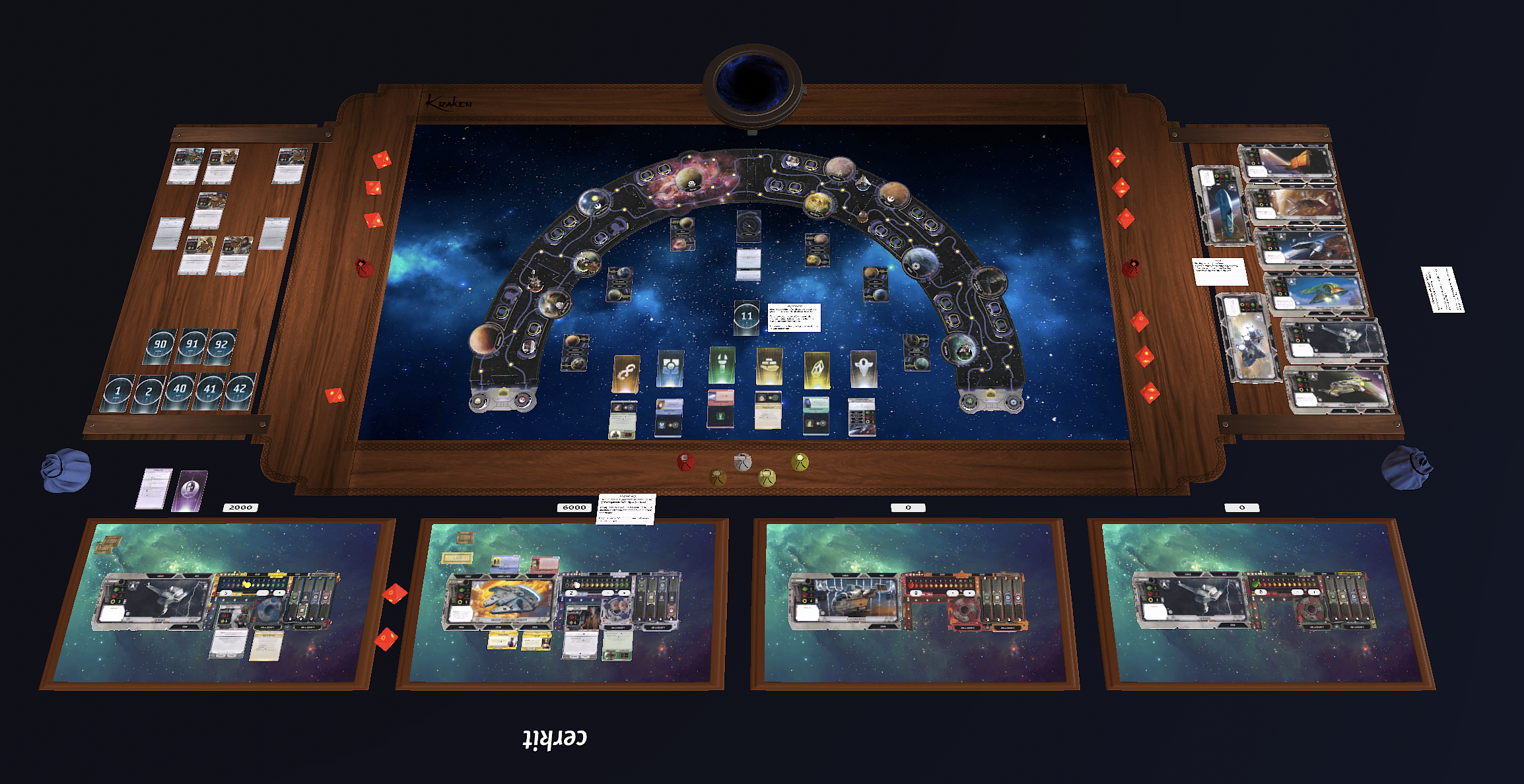
That is exactly why the digital version on Tabletop Simulator on my Mac has been an absolute revelation. Star Wars Outer Rim Tabletop Simulator is a fun way to play.
Making it Virtual: Getting Started on your Mac
Tabletop Simulator (TTS) isn’t a standalone game; it’s a physics toolbox that lets you play board games digitally. If you are a Mac user, this is the most effective way to play Outer Rim. Here is how you can get it up and running:
The first step is getting Tabletop Simulator itself. You will need to have the Steam client installed on your Mac. If you don’t already have Steam, visit store.steampowered.com and download it. Once Steam is running, search for “Tabletop Simulator.” It frequently goes on sale during Steam’s seasonal events. Purchase the game and Steam will immediately download and install it into your library.
Installing “Star Wars: Outer Rim” into TTS
This is where the magic of the community happens. Once Tabletop Simulator is installed, you need to find the specific community mod for Star Wars: Outer Rim. While on the Tabletop Simulator page in your Steam Library, look for the “Workshop” tab located just below the “Play” button. Click it to open the library of user-created mods. In the main Workshop search bar, type “Star Wars Outer Rim”. You will see several versions. I highly recommend looking for a version marked “scripted”—these are the ones created by amazing community coders that handle the tedious bits for you. When you find a highly rated version that looks good, simply click on the thumbnail to visit its page, and then click the large green “+ Subscribe” button. Steam will immediately begin downloading that mod’s assets into your TTS game file.
Hyperspace in a Single Click
Once subscribed, launch Tabletop Simulator. Click on “Create” (or “Join” for multiplayer), select your game type (Singleplayer works great for learning), and then click on the Workshop tab. You will see a thumbnail of the Star Wars: Outer Rim mod you just subscribed to. Click it, and the game will begin to load.
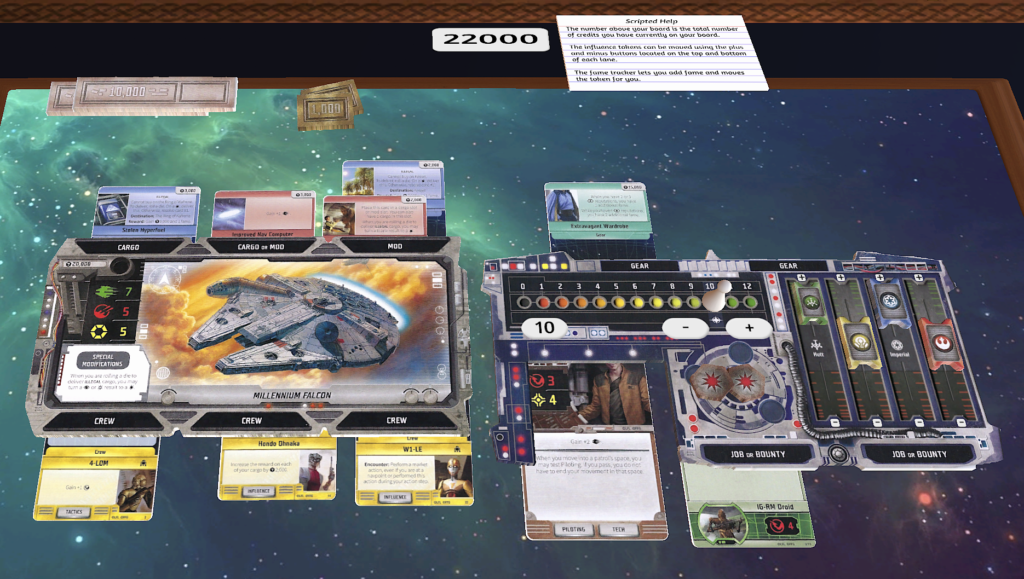
Because I use a highly scripted mod, the annoying setup and take-down that I dreaded are completely gone. The mod randomizes the contact tokens, shuffles every market deck, and builds the intricate galaxy map on its own. In the base game, I might dread shuffling that Databank deck, but in TTS, I just right-click and search. This digital setup removes all the friction, allowing me to dive straight into the fun of upgrading my YT-1300 and navigating the dangerous criminal underworld of the Outer Rim.