
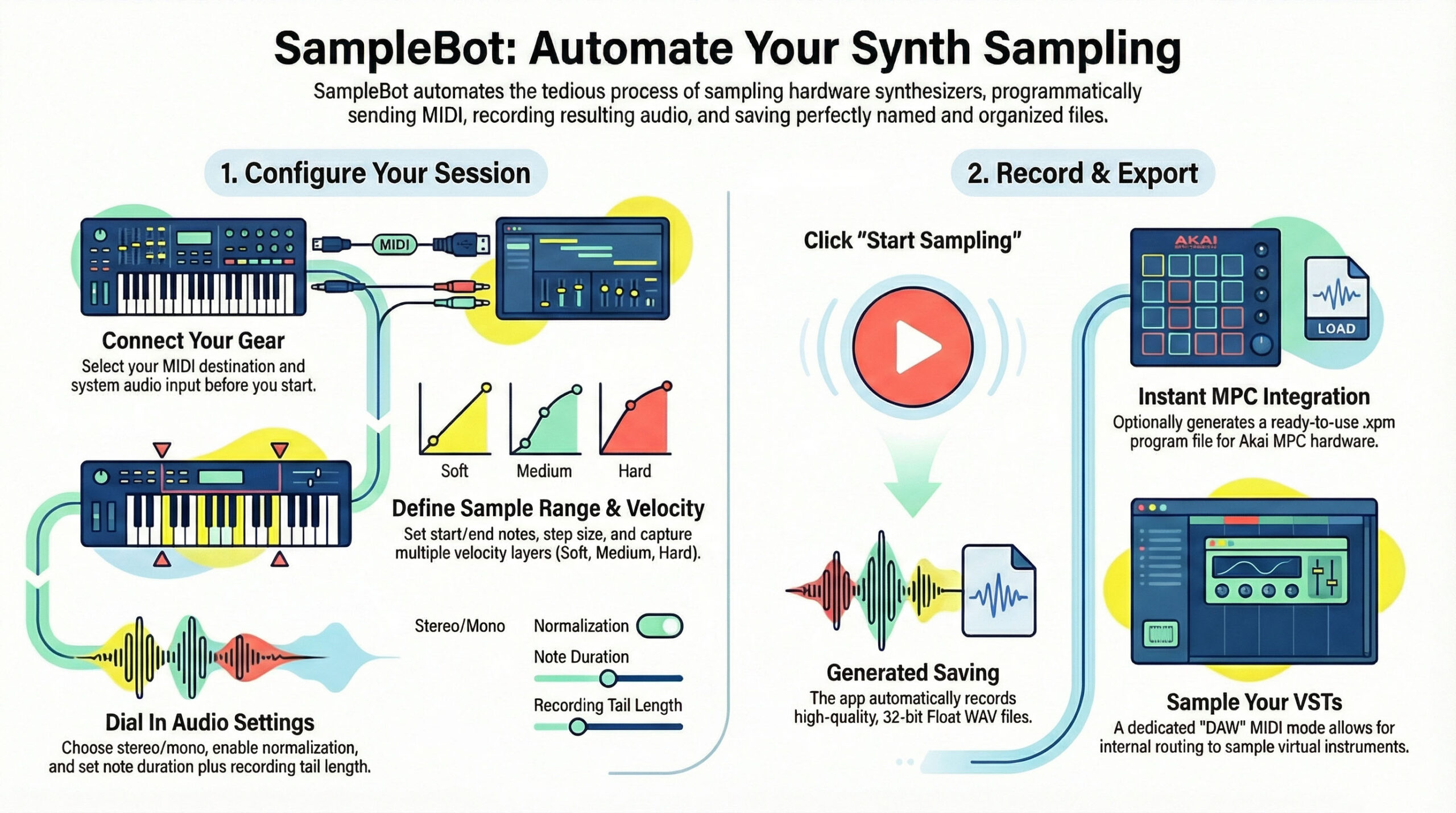
If you have ever spent hours manually sampling a hardware synthesizer, you know how tedious the process can be. SampleBot is a macOS utility specifically designed to automate hardware synthesizer sampling, taking the manual labor out of creating multi-sampled instruments. By sending MIDI Note On/Off messages to your gear and recording the returning audio, SampleBot creates perfectly named and organized sample files automatically.
Note: There is now a Windows version of the SampleBot with limited functionality.
Precision Automated Sampling
At its core, SampleBot is built for efficiency. It allows you to trigger notes across a specified range with a customizable step size (stride), such as sampling every note or skipping octaves. To capture the true character of an instrument, the app supports multi-velocity layers, allowing you to record at Soft (64), Medium (100), and Hard (127) levels.
The app provides deep control over the timing of your samples, including:
- Note Duration: How long the MIDI key is held.
- Tail Duration: How long the app continues to record after the note is released to capture natural decay.
- Trimming: An automated option to remove silence or latency from the start of each recording.
Sampling VSTs with DAW MIDI Source Mode
While SampleBot is excellent for hardware, it is equally powerful for internal routing through its DAW Connectivity feature. This allows you to capture samples from VSTs or other software sources within your Digital Audio Workstation.
To use this feature, you select “DAW” from the “Destination” dropdown menu in the MIDI settings. This creates a virtual “SampleBot MIDI” source. By selecting SampleBot as the MIDI input source within your DAW, the app can trigger your favorite software instruments. Combined with your system’s audio routing, SampleBot will iterate through the notes and velocities just as it would with a physical synth, recording the output into high-quality 32-bit Float WAV files.
Setting Up Internal Routing with BlackHole-2ch
To fully utilize the DAW Connectivity feature for sampling VSTs, you need a way to route the audio from your DAW back into SampleBot. Since SampleBot is designed to record from the system default audio input, a virtual audio loopback driver is required to bridge the two applications.
1. Install the Loopback Driver
The most efficient way to install the necessary virtual driver on macOS is via Homebrew. Open your Terminal and run the following command:
brew install blackhole-2ch
2. Configure Your DAW for Output
Once installed, open your DAW and navigate to its audio settings. Set the Audio Output Device to BlackHole 2ch. This ensures that any sound produced by your VSTs is sent into the virtual loopback cable rather than your speakers.
3. Set SampleBot’s Input Source
Because SampleBot captures audio from the system’s default input, you must update your macOS settings so the app can “hear” the DAW.
- Go to System Settings -> Sound.
- Select BlackHole 2ch as the Input device.
- In SampleBot, ensure you have selected the correct Input Channel (usually 1-2 for stereo) to match the output of your DAW.
4. Establish the MIDI Link
Finally, return to SampleBot and select “DAW” from the Destination dropdown menu in the MIDI settings. This creates the virtual “SampleBot MIDI” source. In your DAW, set the MIDI input of your desired VST track to “SampleBot MIDI.”
Now, when you click “Start Sampling,” SampleBot will send MIDI notes to your DAW, the DAW will play the VST, and the audio will travel through BlackHole back into SampleBot to be recorded as a high-quality 32-bit Float WAV file.
Instant MPC Keygroup Creation
For producers using the Akai MPC platform, SampleBot includes a dedicated MPC Keygroup Export feature. Instead of just giving you a folder of loose WAV files, SampleBot can generate a ready-to-load .xpm program file.
When creating a Keygroup, you can configure several playback parameters directly within the utility:
- One Shot or Loop: Define how the samples behave when triggered.
- Release Time: Set the fade-out duration for note-off messages.
This feature ensures that your newly sampled instruments are immediately playable on MPC hardware or software without the need for manual mapping or program building.
Professional Audio Processing and Organization
SampleBot ensures your samples are production-ready the moment the process finishes. The built-in Audio Processing suite includes automatic normalization, where you can use a slider to set a specific Peak Level (such as -3.0 dB) to prevent clipping. You can also choose between stereo or mono recording depending on your source.
To keep your library tidy, the app uses custom filename prefixes and organized file exports, ensuring you never have to guess which note or velocity a specific file represents.
Analogy for Understanding: Think of SampleBot as a professional archival photographer for your sounds. Instead of you manually taking a picture of every single leaf on a tree (every note and velocity), you simply tell the photographer the range and detail you need. The photographer then systematically captures every angle, labels them perfectly, and even crops and color-corrects them (normalization and trimming) before handing you a finished, organized album ready for display.
View the Source Code
The source code for SampleBot is on GitHub and is licensed with a permissible MIT license.
Download the App for macOS
You can download the latest release on GitHub. Once you have downloaded and unzipped the app binary, you can move the .app file to your Applications folder for normal operation.